 button and CEX Override.
 This feature allows you to set override amount for each Client Expense Charge (CEX) Cost Reason at the client level. This amount will override the Cost Reason Default Amount and the Court-Payee Court Cost Override Amount.
This is a Version 11 Feature. For information about the purchase of Version 11, please contact Sales.
The Client Level CEX Default Amount is set on the Client Account, pull up a client account and select the button and CEX Override.
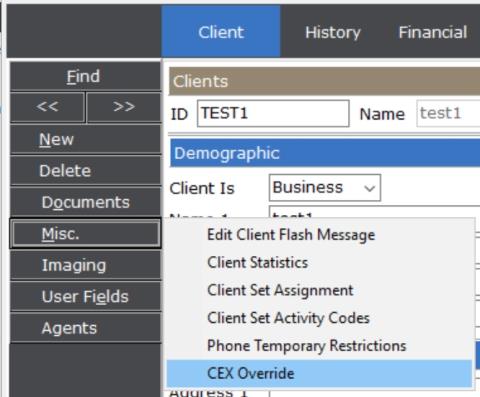
Once selected the CEX Override Screen will be displayed.
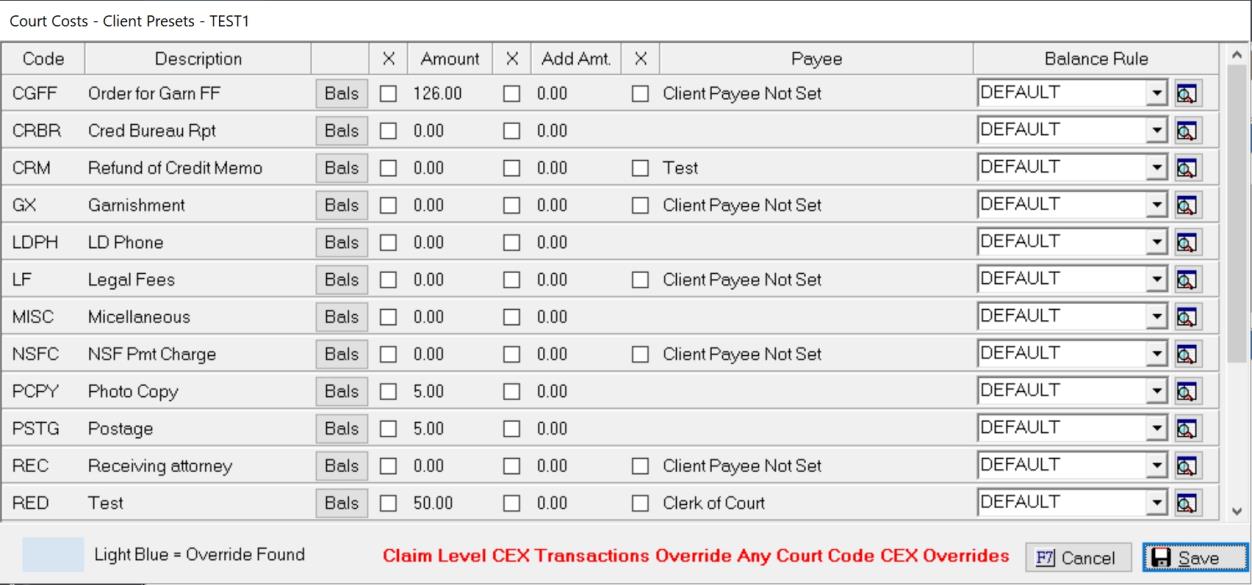
The List of all CEX Cost Reasons will be listed in the CEX Cost. The amount you set here will override both the Default Amount set on the CEX Cost Reason Code setup and the Court Cost Override.
Find the CEX Cost Reason and click the box next to the Amount and enter the default amount.

Then save and exit. Once you post a CEX transaction on a claim with this Client, it will automatically bring in the amount sent into the transaction amount where the user can post or change before posting.
If this CEX Reason has a default amount set on the Reason Code or under the court attached to the claim, the Client Level amount will override all other default amounts.
The CEX Amount can use balance rules to set the proper amount as can court costs. See Court Cost Override for information on how to set the Balance Rules remembering to access the CEX Overrides from the client level and not the Court-Payee level.